An AI accounting assistant that codes expenses for you
Pemo Copilot is an AI accounting assistant. It suggests the account, vendor and VAT for each expense, and the user stays in control: accept it, change it, or turn it off.
Problem statement
How can we cut the time finance teams spend coding expenses?
Every card expense has to be matched to an account, a vendor and a VAT treatment before it can be exported to the accounting system, and doing that by hand was slow. Industry estimates put it at 3 to 5 minutes per expense, and a growing SME can have 300 to 700 expenses a month, which adds up to roughly 15 to 58 hours of coding every month. Customers were asking for help with it, and it fit Pemo’s push into AI. Copilot takes the first pass, so people review instead of type.
My role
I was the only designer on Copilot and took it end to end: research, flows, the suggestion experience, Accounting settings and handoff.
Solution
Suggestions where the work already happens
Copilot fills in the account from the chart of accounts, the vendor and the VAT details on each expense, marked with a sparkle so it’s clear what the AI chose and what a person did. Nothing is locked: every suggestion can be changed, so the finance team stays in control. It also gets better the more it’s used.
One switch, nothing to configure
Copilot has its own switch under “AI powered accounting”. It learns from the company’s past entries, needs no configuration, and starts suggesting once it’s on. A second switch, Smart Vendor Creation, builds on it: it suggests vendor names and their Tax Registration Numbers (TRN) so the right vendor is assigned for VAT claims. It’s a separate switch because not everyone wants vendors created automatically, and some teams prefer to keep creating them by hand. The two work together, so it stays disabled until Copilot is on, and a tooltip explains why.
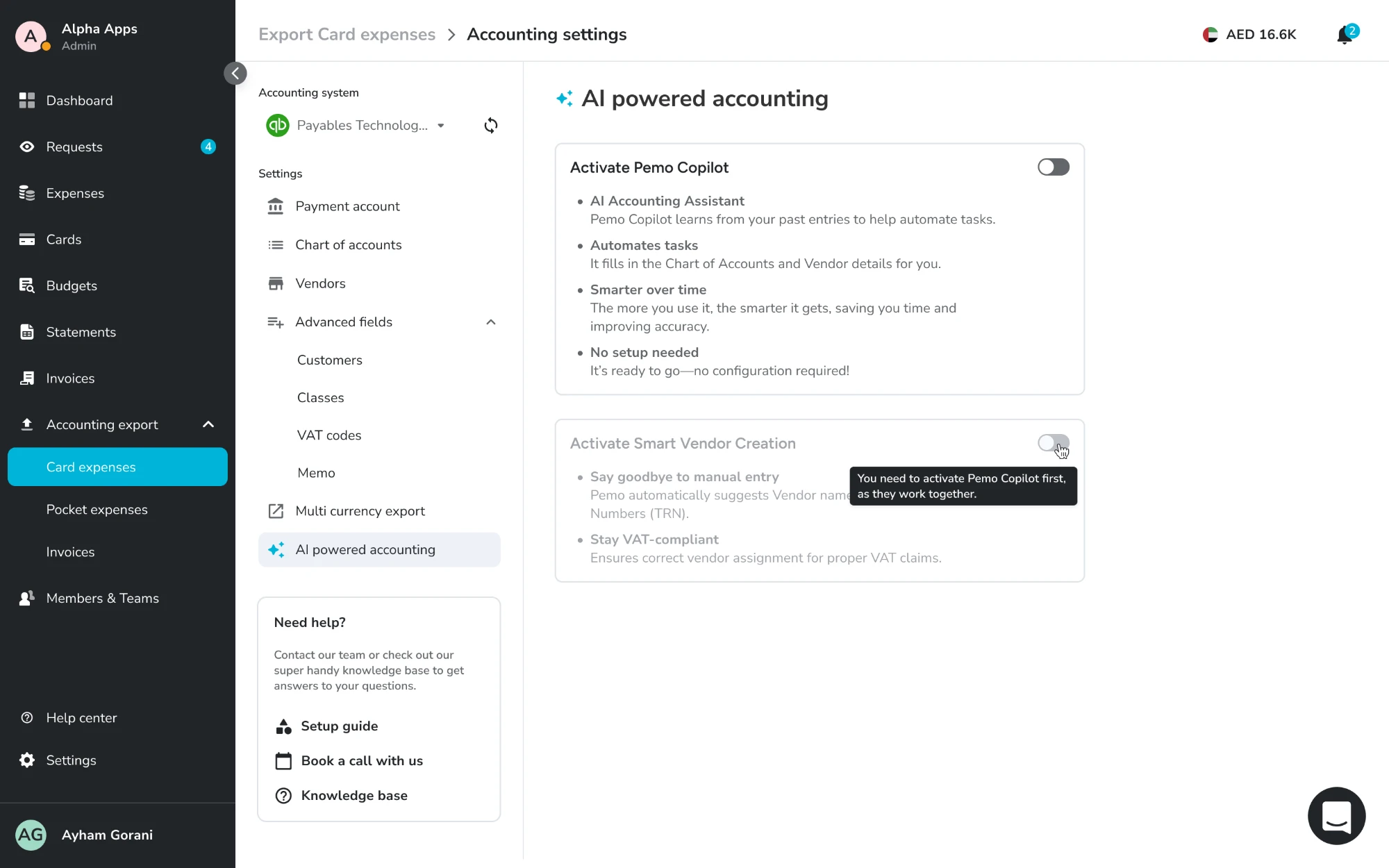
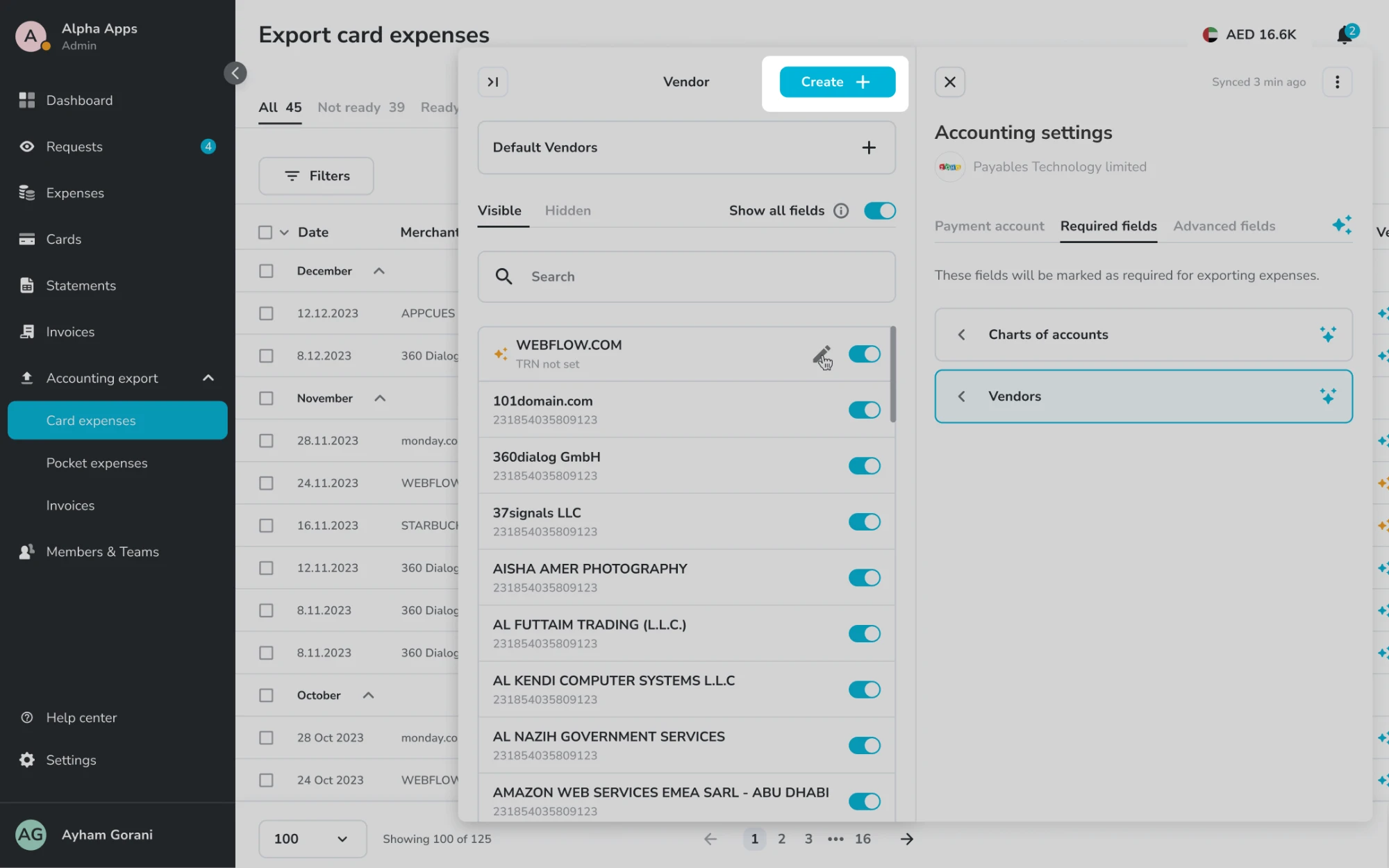
The rest of the accounting setup sits alongside it in Accounting settings: chart of accounts, vendors, advanced fields and multi-currency export. Teams can see the vendor list Copilot works from, which payment details are verified or missing, and switch individual vendors on or off.
Works with the accounting system you already use
Transactions sync in real time to QuickBooks, Zoho Books, Tally and Xero, and anything else can take a CSV export. Teams mirror their chart of accounts in Pemo in a few clicks and choose when transactions sync, so changes made in Pemo show up in the books without a month-end scramble. Receipts that are missing or look wrong are flagged automatically.

The chart of accounts lives in Accounting settings, next to the payment account and vendors. Each account can be searched, edited, or switched on and off.
Research and analysis
Who does this work
In most companies an accountant codes the expenses by hand. In smaller ones it falls to the finance manager or the founder. In every case it’s slow, and when it’s slow the books close late.
How exporting worked before
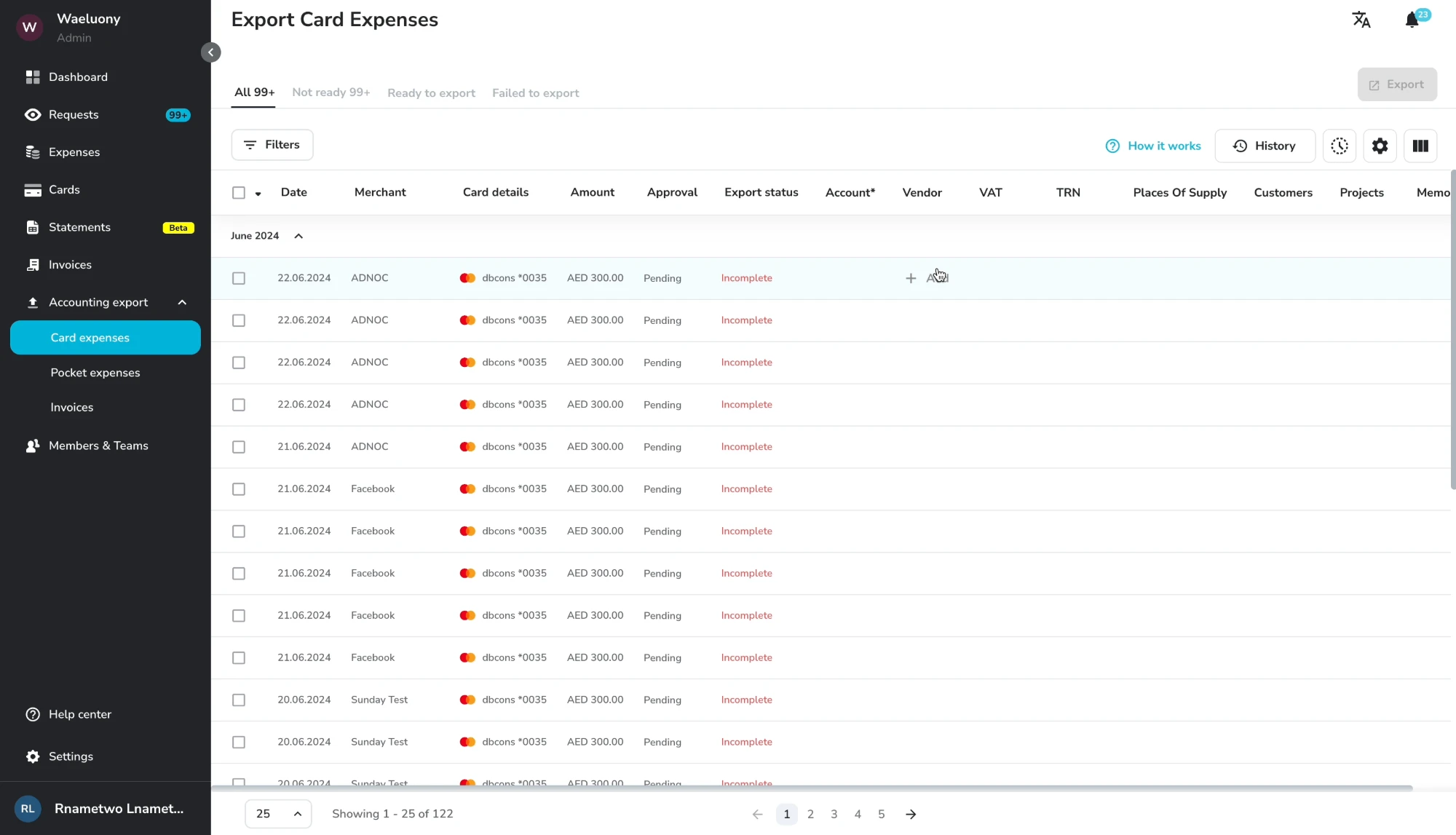
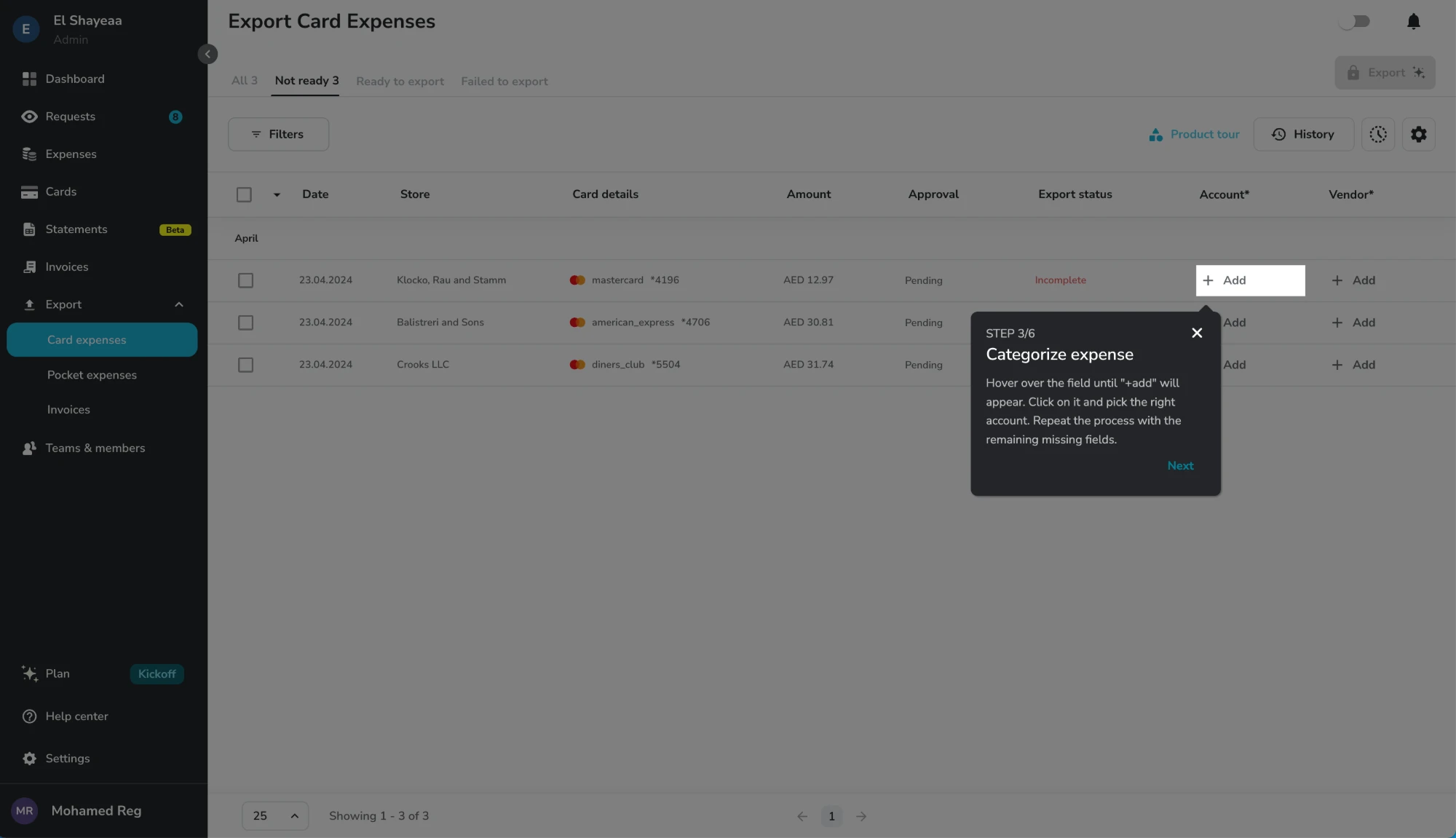
Before Copilot, every account and vendor field started empty with an Add button. The product tour told people to hover over the field until ”+ Add” appeared, click it and pick the right account, then repeat for each missing field.
Internal testing and beta
We tested Copilot internally, then with beta customers, starting on 28 June 2024. Two things we learned shaped the design.
It needs time to learn before it suggests. Copilot needs at least three cycles of running in the background, only capturing information. Suggesting earlier would risk lowering its accuracy, so it doesn’t trigger until it has enough to work with, which means it works best for companies that have already closed their books. That set how I handled the empty and uncertain states: with enough information it suggests, with enough information but no vendor TRN the sparkle turns orange, and with nothing to suggest the field stays blank for the user to fill in.
It takes time, so it runs in the background. Copilot can take a while, so it works in the background while people explore the rest of the platform. We can’t give an exact timeframe, only an estimate, so the interface says that.
Competitor research
I looked at Ramp and Moss. Both highlight the whole row while the AI is working. That’s clear at a glance, but it didn’t fit our case. Some of our suggestions need a second look because a detail is missing, such as a vendor’s TRN number, and the user needs to see which field to check, not just which row.
Explorations
Option 1: A marker on the column
The first idea was an icon next to the column title to show the column was filled in by AI. It was simple, but it said nothing about individual expenses, so users couldn’t tell which suggestions needed attention.
Option 2: A marker on each field
The second option marked individual fields instead. Each suggestion shows whether Copilot was confident, so a person can scan the table and go straight to the ones that need a review. That’s the one I took forward.
The brief was to keep it simple. This was Pemo’s first AI feature and we didn’t want to overcomplicate it, so I kept the first version to the essentials and cut nothing that I’d have wanted to ship.
Sketching the flows
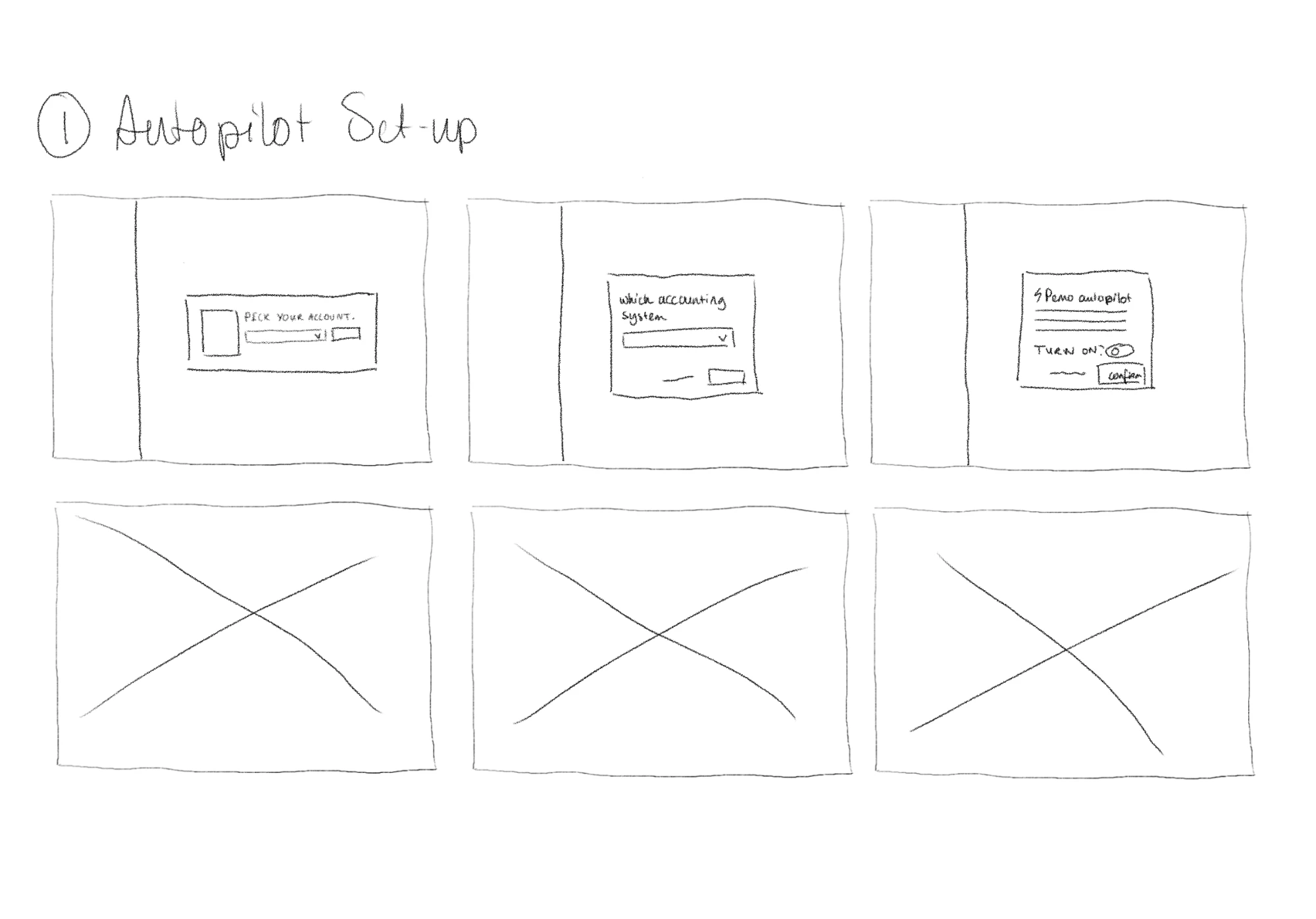
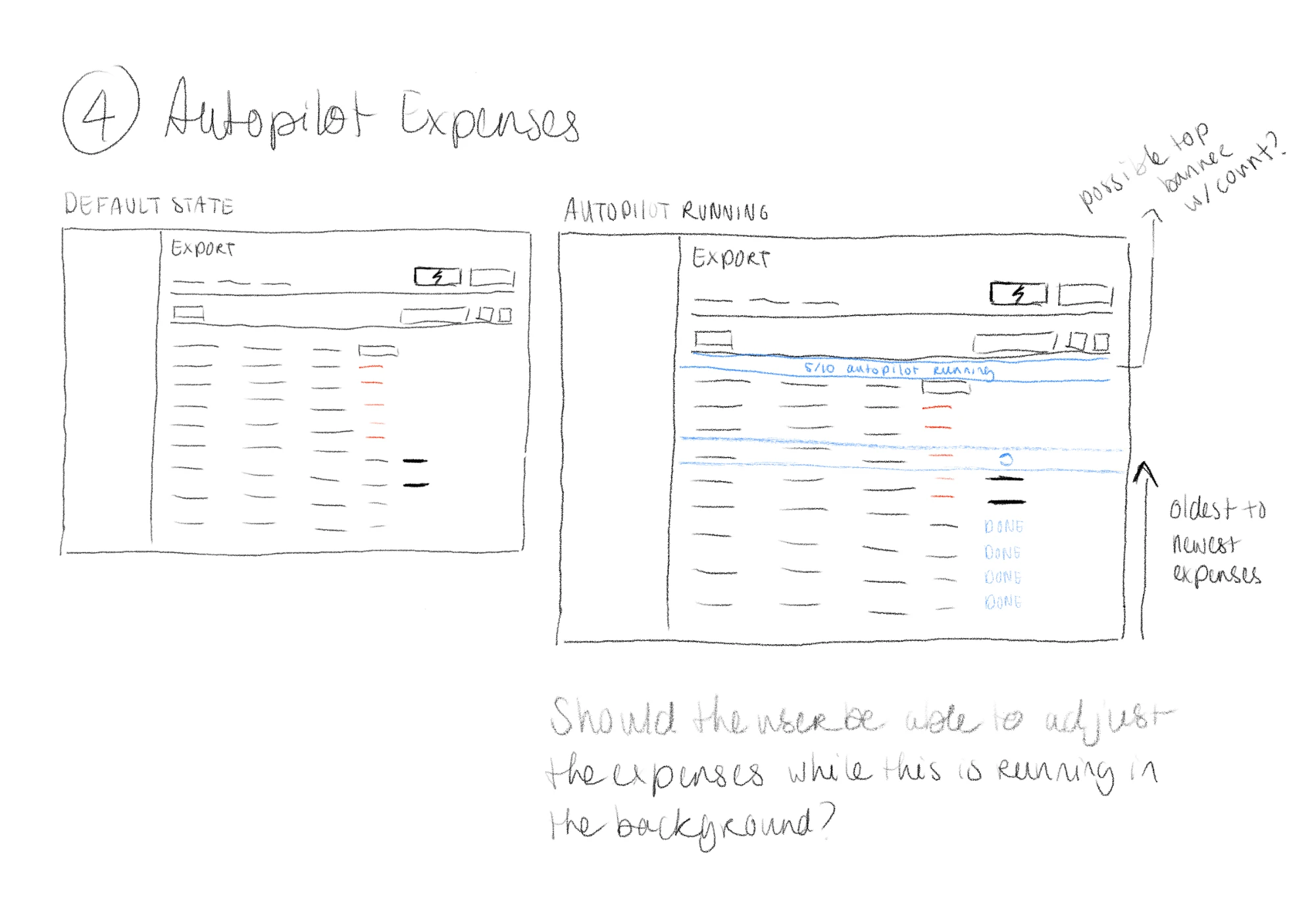
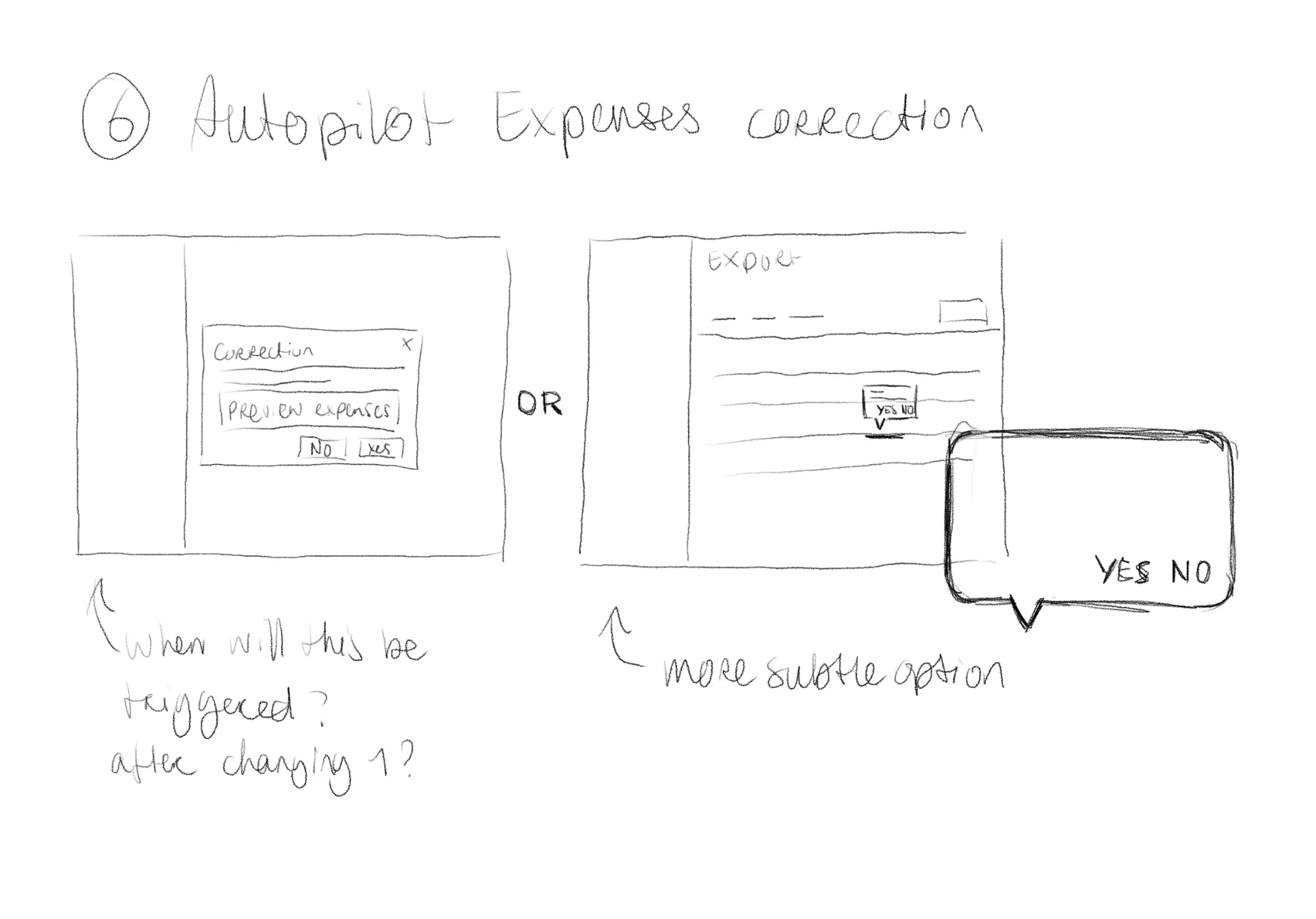
Before opening Figma I sketched the three moments that needed the most thought. They’re from before the feature had a fixed name, so they say Autopilot.
Set-up. Pick the Pemo account, choose the accounting system, then a single “turn on?” confirmation.
Expenses. The default table next to a running state, with a “5/10 autopilot running” band moving from the oldest expense to the newest and each finished row marked done. I left myself two open questions: whether the count should sit in a banner at the top, and whether the user should be able to edit expenses while it runs in the background.
Corrections. Two ways to confirm a correction: a modal with a preview of the affected expenses, or a smaller yes or no prompt on the row itself. I called the second the more subtle option and asked when it should trigger, for example after changing one expense.
Final solution
Implemented improvements
- A blue sparkle marks each field Copilot filled in, account and vendor, so it’s clear what the AI chose. Blue is the platform’s main colour.
- An orange sparkle is a warning: the user should review that specific field. In the video at the top of the page, Starbucks is matched to a vendor whose TRN isn’t set, so the user knows to check it before exporting.
- No sparkle when Copilot has nothing to go on, like the “Other expenses” account on that Starbucks row. The user is always expected to review, so an empty field is a prompt to fill it in, not an error.
- An inline dropdown opens when the user clicks any field, with all their vendors, so changing a suggestion takes one click.
Switching it on takes two steps
Connecting the accounting system ends in two short steps: choose the account that represents the Pemo wallet, then a single “Activate Pemo Copilot?” screen marked Beta, with one Confirm button. This is the flow from my first sketch, built.
Working in the background
Once it’s on, a banner says how many expenses Copilot is working on, that it may take up to 30 minutes (an estimate, since we can’t promise an exact time), and that details appear in real time. The count ticks down as the table fills in. A notification confirms Copilot is on and that people can keep filling in expenses by hand while it works, which answers the question I left open in the sketch. When it finishes, another asks them to look over the entries and says they can change anything.
Correct one, fix the rest
Change an account on one expense and a small prompt asks whether to apply the same account to the other expenses from the same merchant, five in this recording. It’s the quieter of the two correction options I sketched, a yes or no beside the row instead of a modal.
Smart Vendor Creation, with a review before anything is created
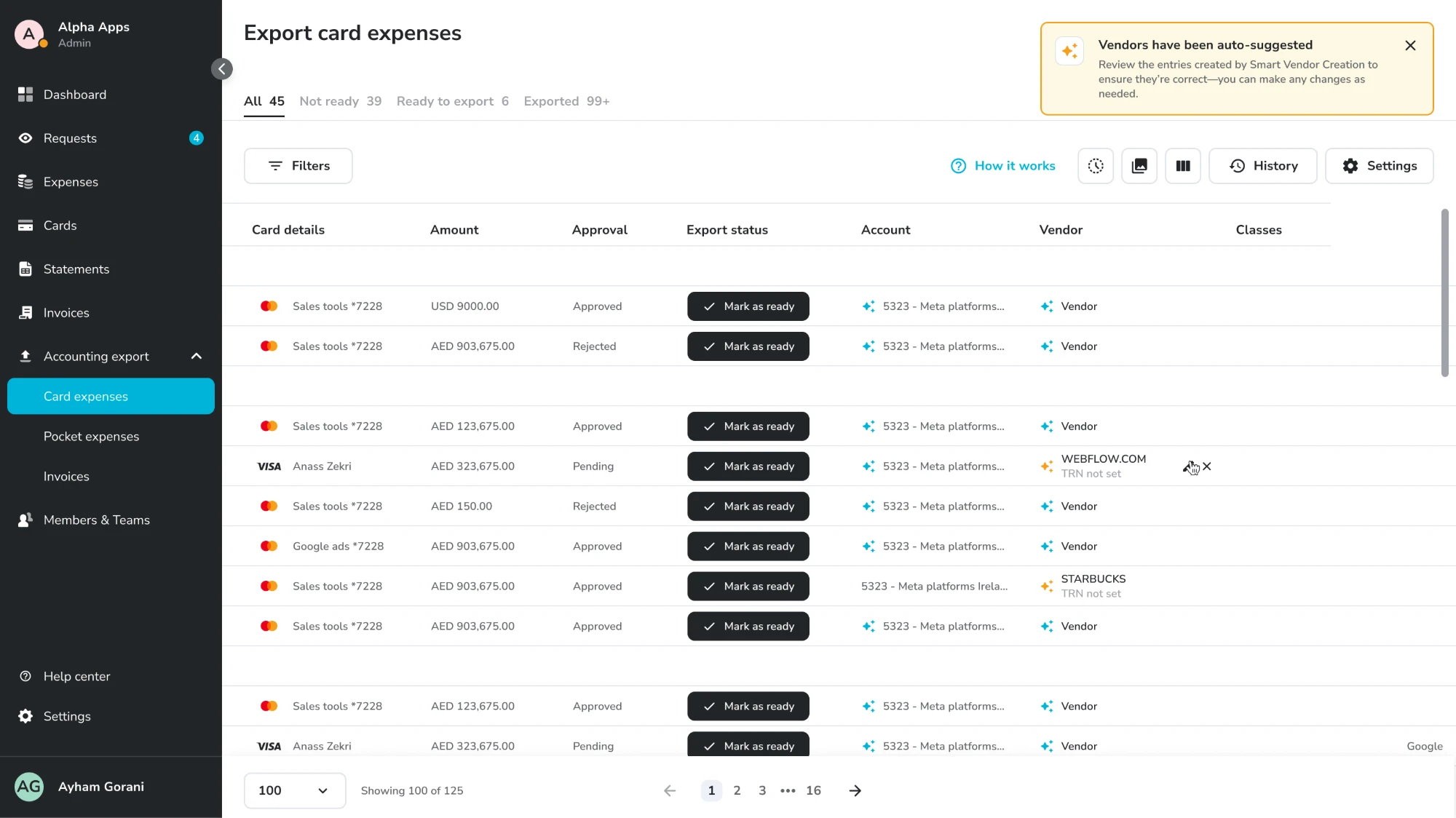
Copilot can also suggest new vendors, and nothing reaches the accounting system until the user confirms. The confirmation comes on export because that’s the moment the system scans every expense, so the vendors can be created in bulk. An orange banner on the export table asks them to review the vendors Smart Vendor Creation suggested and change anything that’s wrong.
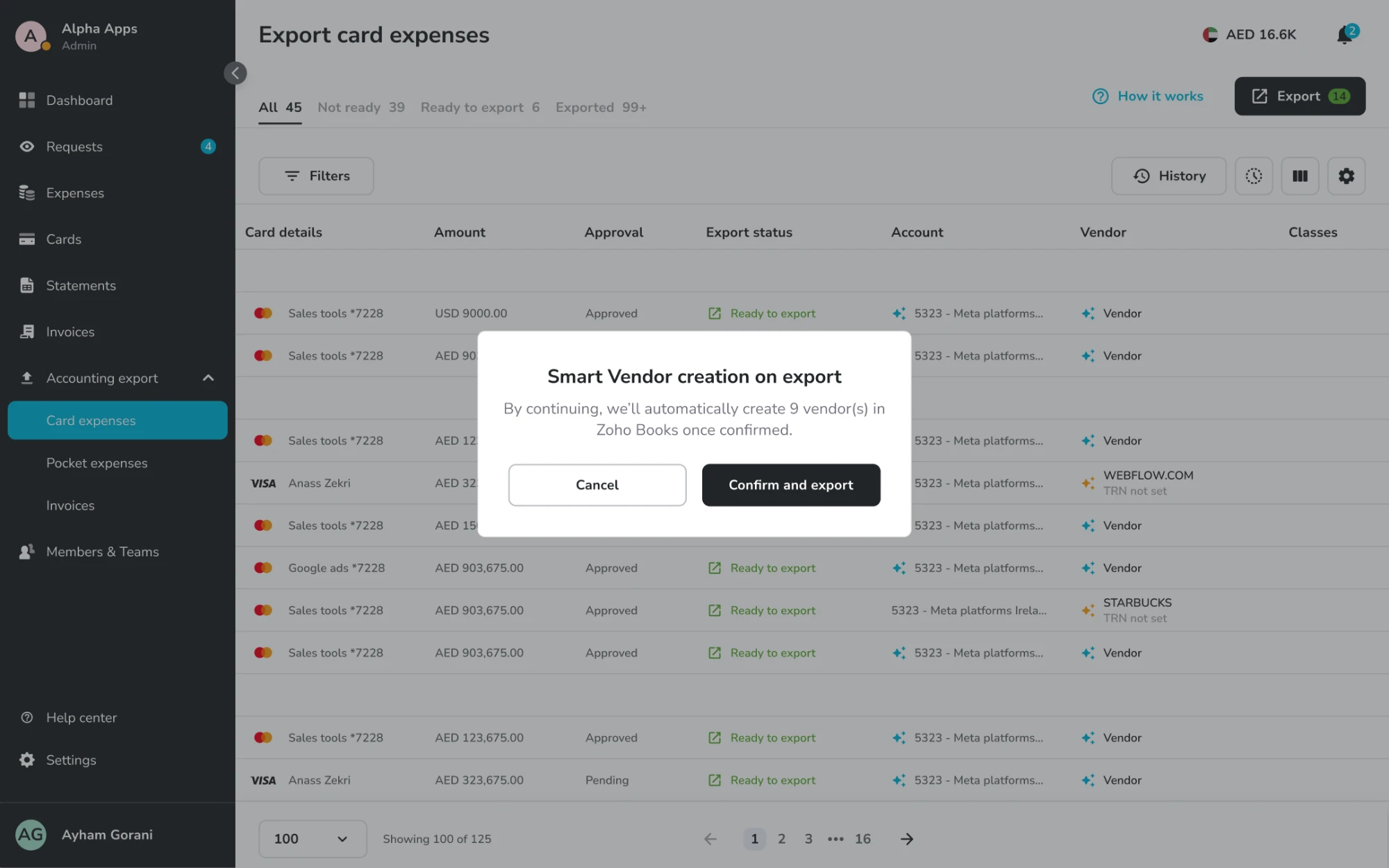
On export, a dialog says how many vendors will be created in the accounting system, here 9 in Zoho Books, and the user confirms or cancels.
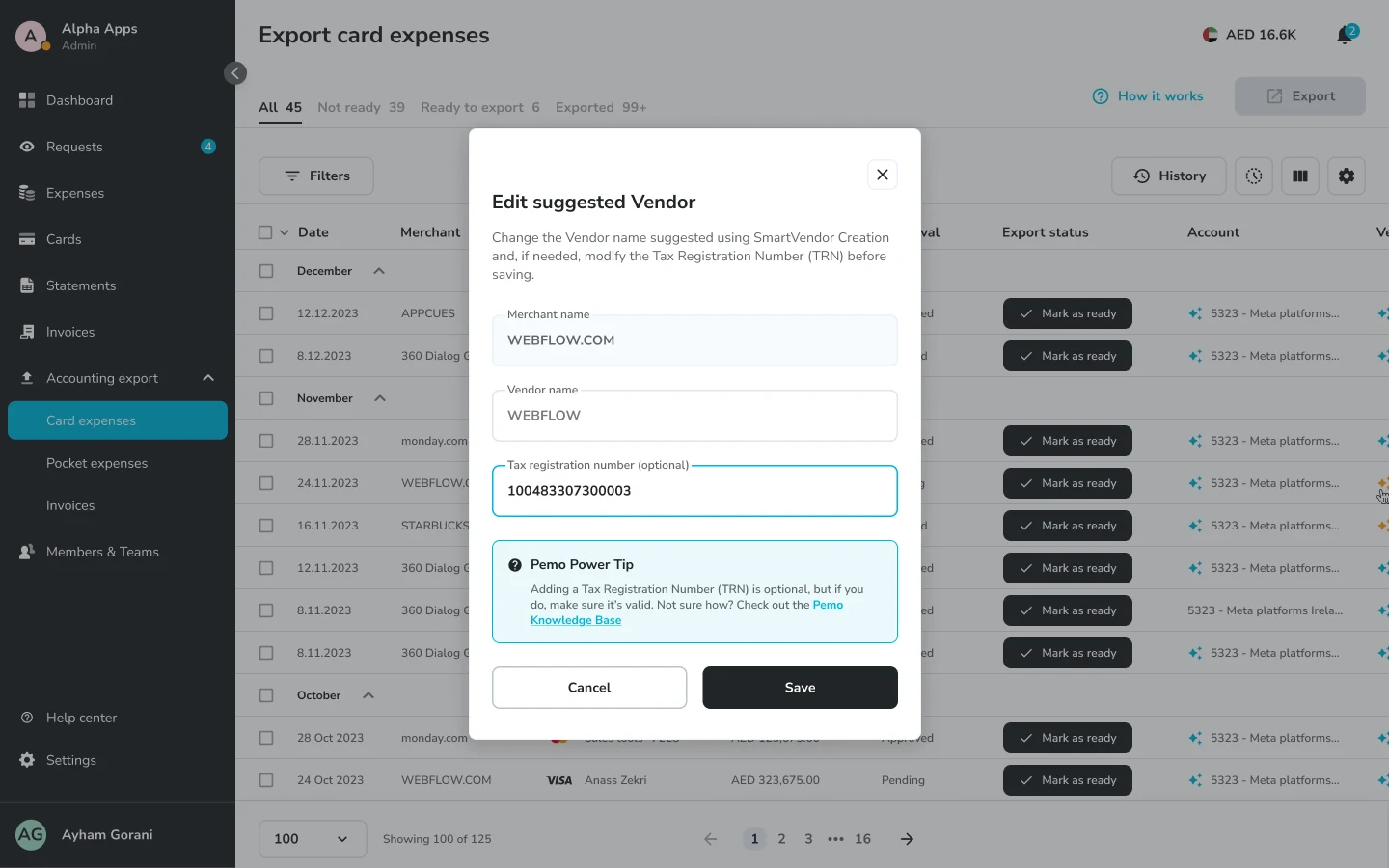
A suggested vendor can be edited in place. The name and the Tax Registration Number can both be changed before saving, with a tip on checking that the TRN is valid.
The same suggestions are listed in Accounting settings, where a vendor with no TRN set is flagged with an orange sparkle and can be edited or switched off.
Where it stands today
Copilot started in beta on 28 June 2024 and went live for everyone in August. These numbers come from our Mixpanel data.
| Number | Label |
|---|---|
| 95.7% | Transactions with a Copilot suggestion |
| 32.8% | Workflows completed without manual input |
| 11.4% | Undo / override rate |
| ~11% | Workflows fully automated |
Copilot suggested an account and vendor for almost every transaction, and about one in nine suggestions gets undone or overridden, which is the control we designed for.